
WordPress Training Guide
This guide will cover the essentials of using WordPress and the unique custom features we’ve built for you. If you have questions, please reach out to us!
Table of Contents
Training Video
WordPress Basics
The WordPress Dashboard & Left Hand Menu
Toggling Between the Frontend & Backend of the Website
Media
Content
Custom Blocks
Custom Post Types
View the Full Training Video
Site Access
In the future you may need to grant permissions to others or adjust who can access different parts of your site. Here’s how you can manage user accounts and control site access:
Adding a New User
- Go to “Users” > “Add New.”
- Fill in the user information, including username, email, first name, last name, and password.
- Choose the appropriate role for the user (e.g., Administrator, Editor, Author, Contributor, Subscriber).
- Click “Add New User.”
Editing an Existing User
- Go to “Users” > “All Users.”
- Click on the username of the user you want to edit.
- Make the necessary changes, such as updating the email, changing the role, or resetting the password.
- Click “Update User.”
Deleting a User
- Go to “Users” > “All Users.”
- Hover over the username of the user you want to delete and click “Delete.”
- You will be prompted to reassign or delete the content created by this user. Choose the appropriate option and confirm the deletion.
User Roles and Permissions
Understanding user roles is crucial for managing site access effectively. Here are the default WordPress user roles and their capabilities:
Subscriber: Can manage their own profile and view content. Suitable for membership or subscription-based sites.
Administrator: Full access to all site features, including theme and plugin management, user management, and content creation/editing.
Editor: Can publish and manage posts, pages, and other content types created by any user.
Author: Can publish and manage their own posts.
Contributor: Can write and manage their own posts but cannot publish them. Posts must be approved by an Editor or Administrator.
Logging into WordPress
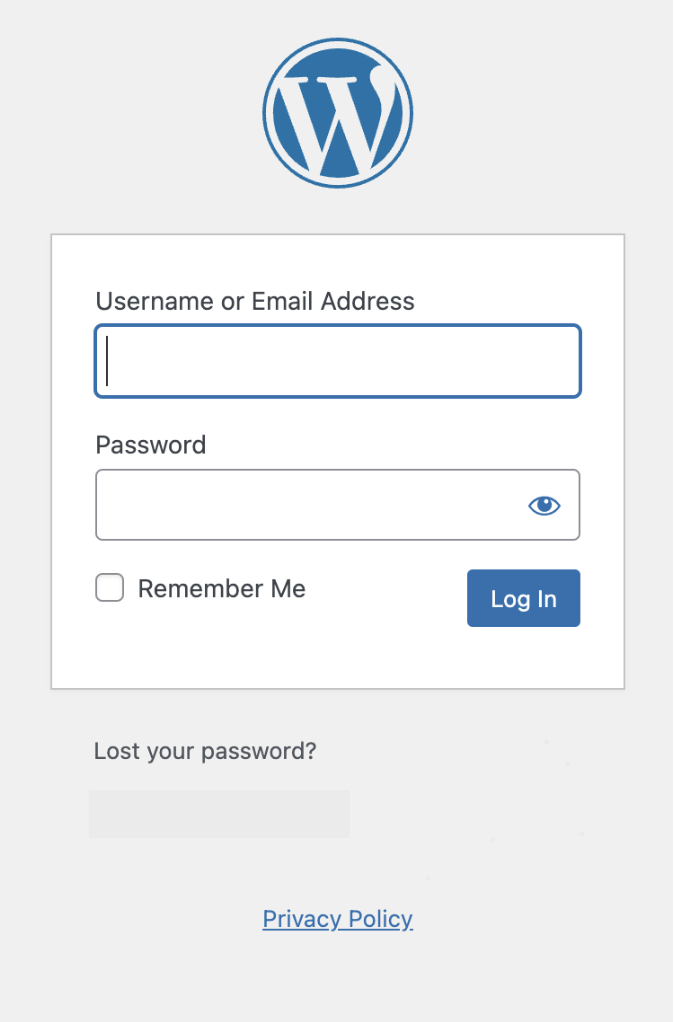
Go to https://www.aeternusadvisory.com/login
Enter your login credentials provided by the administrator.
Once logged in, you’ll be directed to the WordPress dashboard.
If you forget your password in the future, you can use the “Lost your password?” functionality below the login.
The WordPress Dashboard & Left Hand Menu
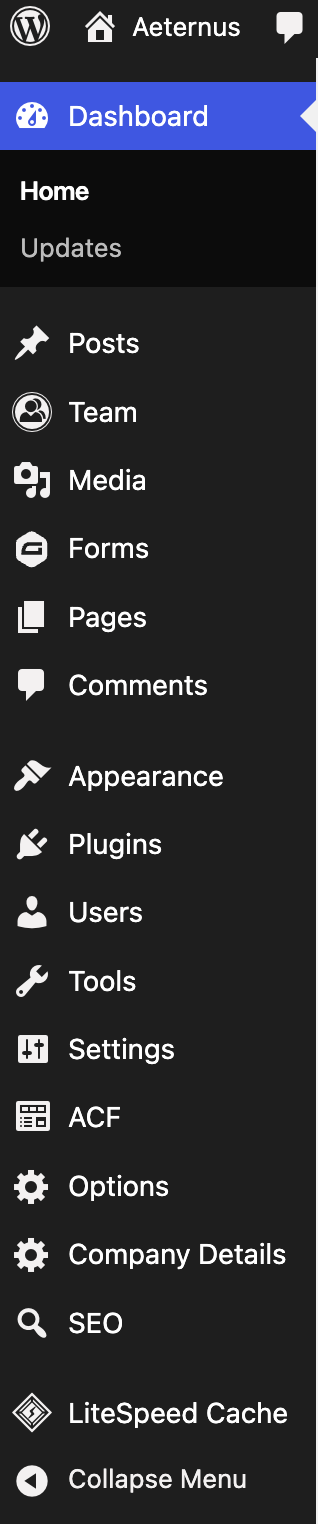
Once logged in, you will land on the Dashboard Screen. From here you can see many options in your menu along the left side. The main area that you will use to edit is:
Toggling between the Frontend & Backend of the Website
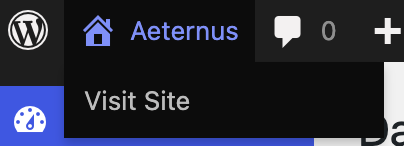
When you are in the backend, click on the house icon on the top left of your screen to toggle between the backend and frontend.
This helps in quickly locating and editing specific pages.
Media Overview
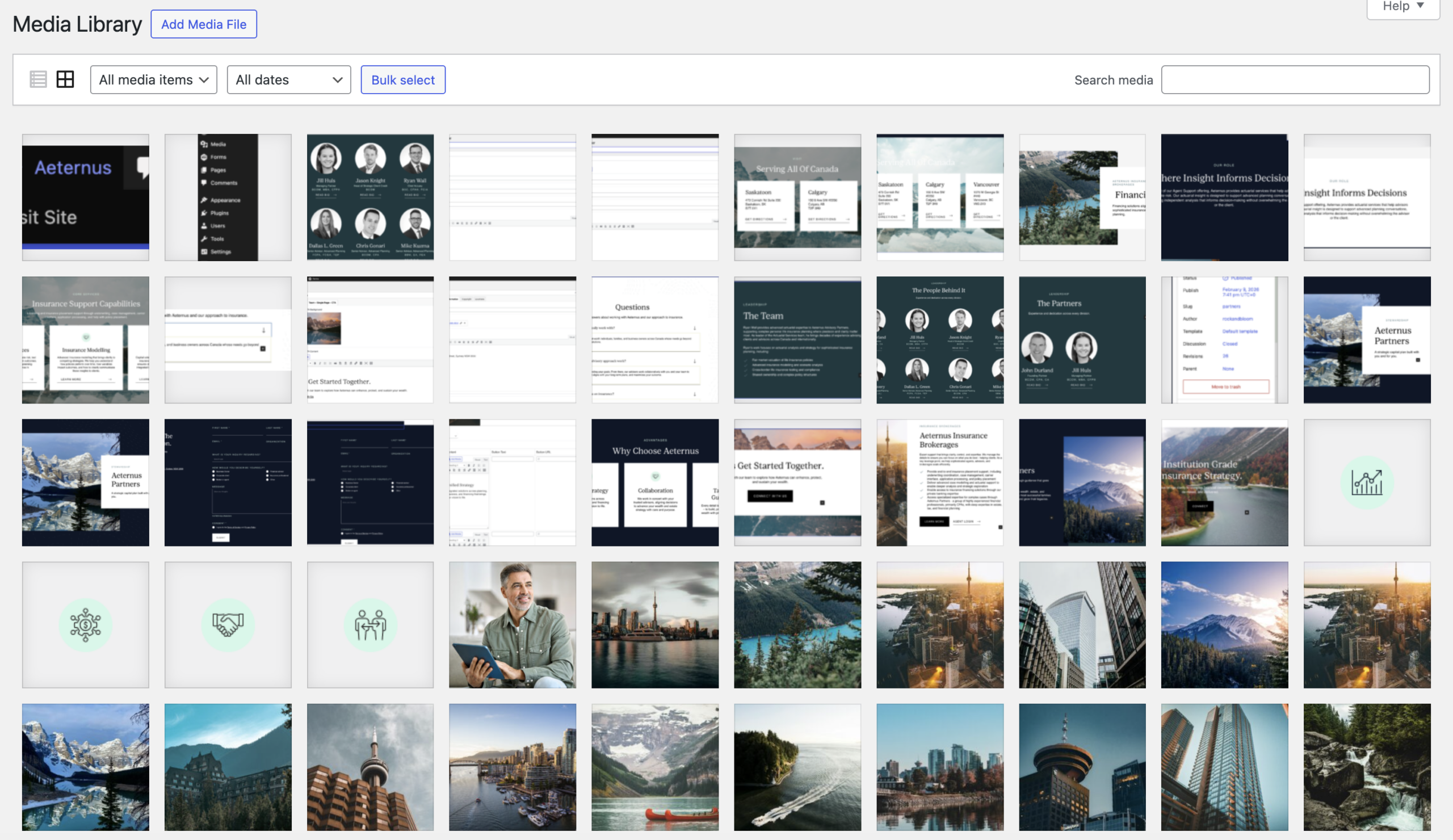
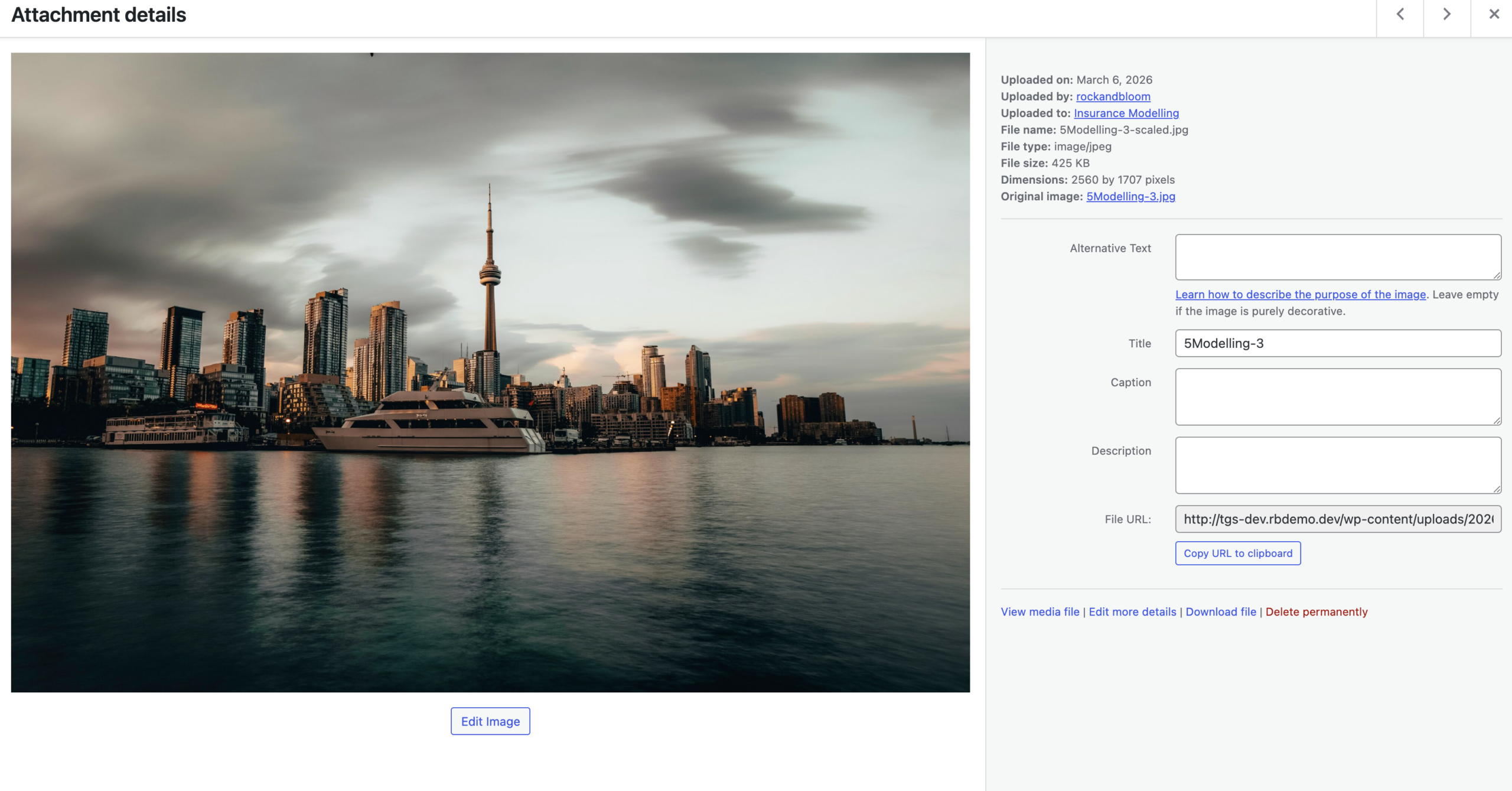
The Media Library contains all of the images, videos, logos and PDFs that are on your site. As there is quite a lot of media on your site, it has been divided into categories to make them more accessible.
Adding New Images & Videos
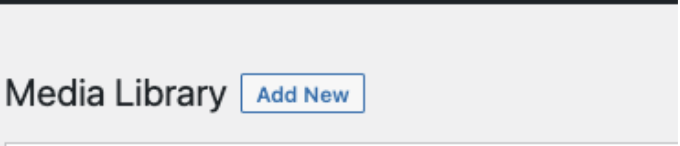
On the top of the Media Library, click on Add New. Then select the image or video that you want to upload.
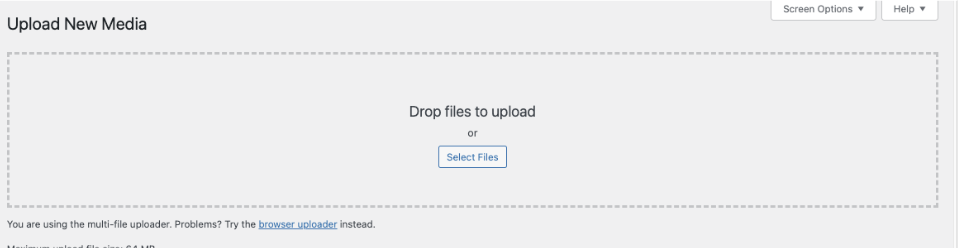
The Upload option will open up and you can select or drag and drop images from your computer here.
Replacing Existing Images
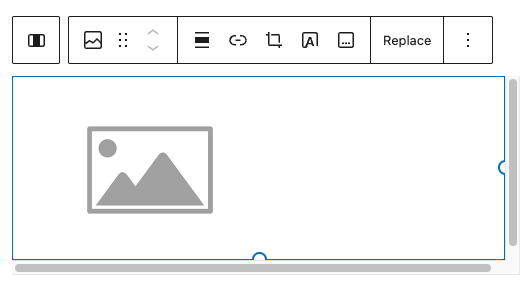
Hovering over the image will show the formatting options.
Clicking on the “x” will remove the image. The “Pencil” helps you to edit the existing image.
After removing the image, you can add a new one by clicking on “Add Image”
Add Image: Clicking here opens up the The Media Library.
The Media Library tab shows the images that are already on the website.
To add a new image you would click on the “Upload Files”
You can drag and drop or select files from your computer to upload.
Add Image: Clicking here opens up the The Media Library.
The Media Library tab shows the images that are already on the website.
To add a new image you would click on the “Upload Files”
You can drag and drop or select files from your computer to upload.
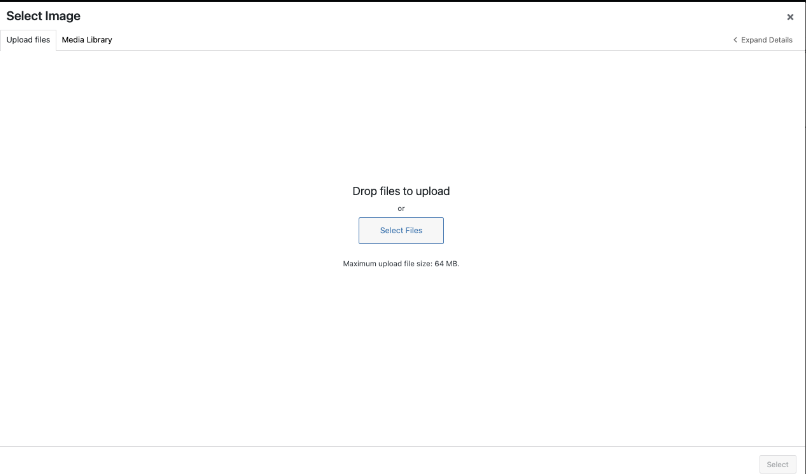
Image Sizes
Recommended Pixel Sizes
Feature image sizes (landscape 1200 x 900 pixels)
Feature image sizes (portrait 900 x 1200 pixels)
Background image size (1920 x 1080 pixels)
Logo image size (200 x 100 pixels)
Thumbnail image size (150 x 150 pixels)
Image Formats
JPEG or PNG
Image File Size
Optimize every JPEG and PNG before uploading to improve website performance. Compressing images enhances speed without sacrificing quality. Use squoosh.app for effective compression without resizing images.
Editing Content
Most of the content on this site is in the form of paragraphs. In some cases, certain words have web links added to them. These links can take you to pages within the site or an external site.
Saving all edits:
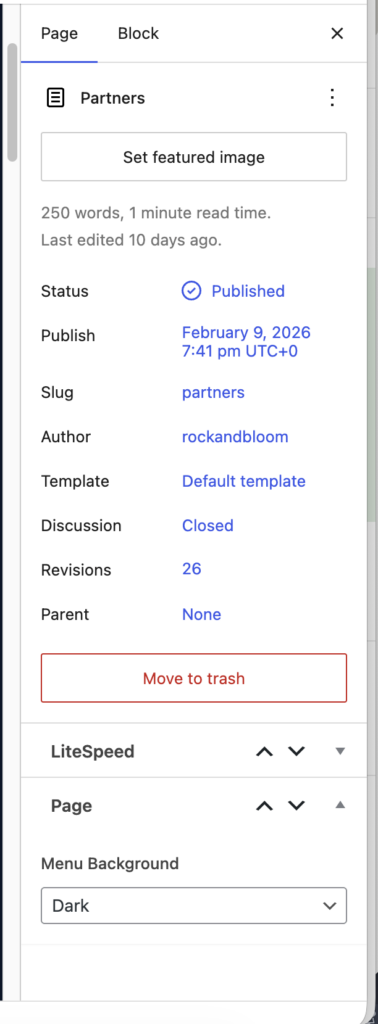
All page edits must be saved by clicking on the “Update” Button on the top right of the screen
Menu Background:
Dark (default)
Light
Make sure the Menu Background on every page matches the background colour of the first block used on each page.
Formatting Text
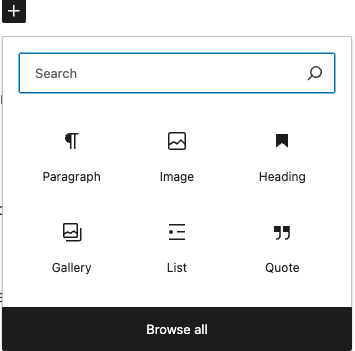
To make your content more engaging and easier to read, you can format your text in various ways:
- Bold: Highlight text and click the “B” button.
- Italic: Highlight text and click the “I” button.
- Headings: Use headings to organize content. Select the text and choose the appropriate heading level from the drop-down menu in the editor.
- Lists: Create bullet points or numbered lists by clicking the respective buttons.
You can also add links to your content that would link to another page on your site (and internal link) or link to a different website (an “external link”)
To add a link to a certain word or phrase:
- highlight the word or phrase you would like to add a link to.
- Click on the “chain link” icon.
- Paste in or search for the link that you would like to add.
- Click on the link and press Enter.
- To add an external link, follow the same steps as above, except after adding the link, make sure the “Open in new tab” option is selected.

Schedule Post
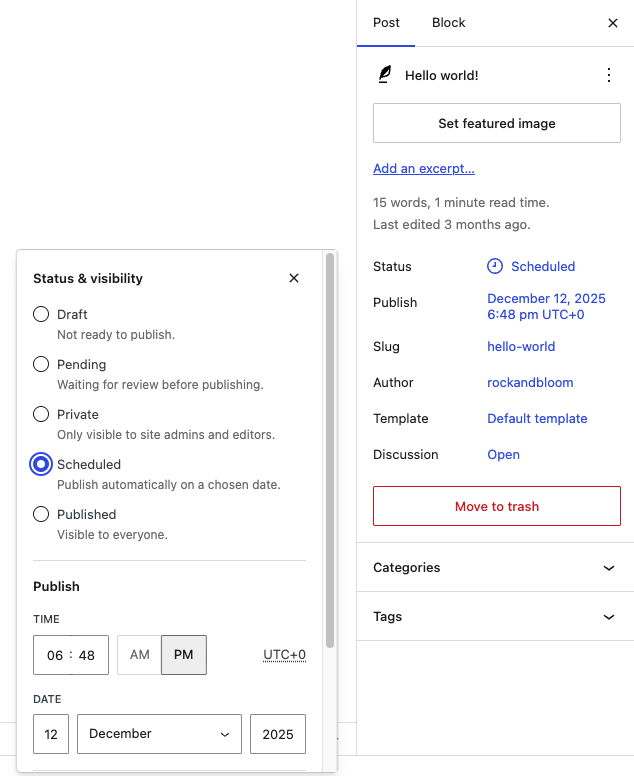
To schedule a post:
- Go to the Publish section on the right sidebar.
- Click the current publish value. The image, the value is Immediately.
- Set the date and time the post should be published on.
- Select the Schedule button that appeared on the top bar.

Redirects
To add a redirect to a page (which is often used for social media purposes) go the Tools > Redirection:
- Add the Source URL
- The new url (URL you wish to redirect from)
- Do NOT include https://www.aeternusadvisory.com/, you only need / in front of the new url
- Ignore Query Parameters
- Stay as default “Exact match in any order”
- Add the Target URL
- The old URL (URL you wish to redirect to)
- Do NOT include https://www.aeternusadvisory.com/, you only need / in front of the old url
- Ignore Group
- Stay as default “Redirections”
- Click Save
Redirects already created can be edited or deleted by hover over the redirect name and selecting the required action.

Options
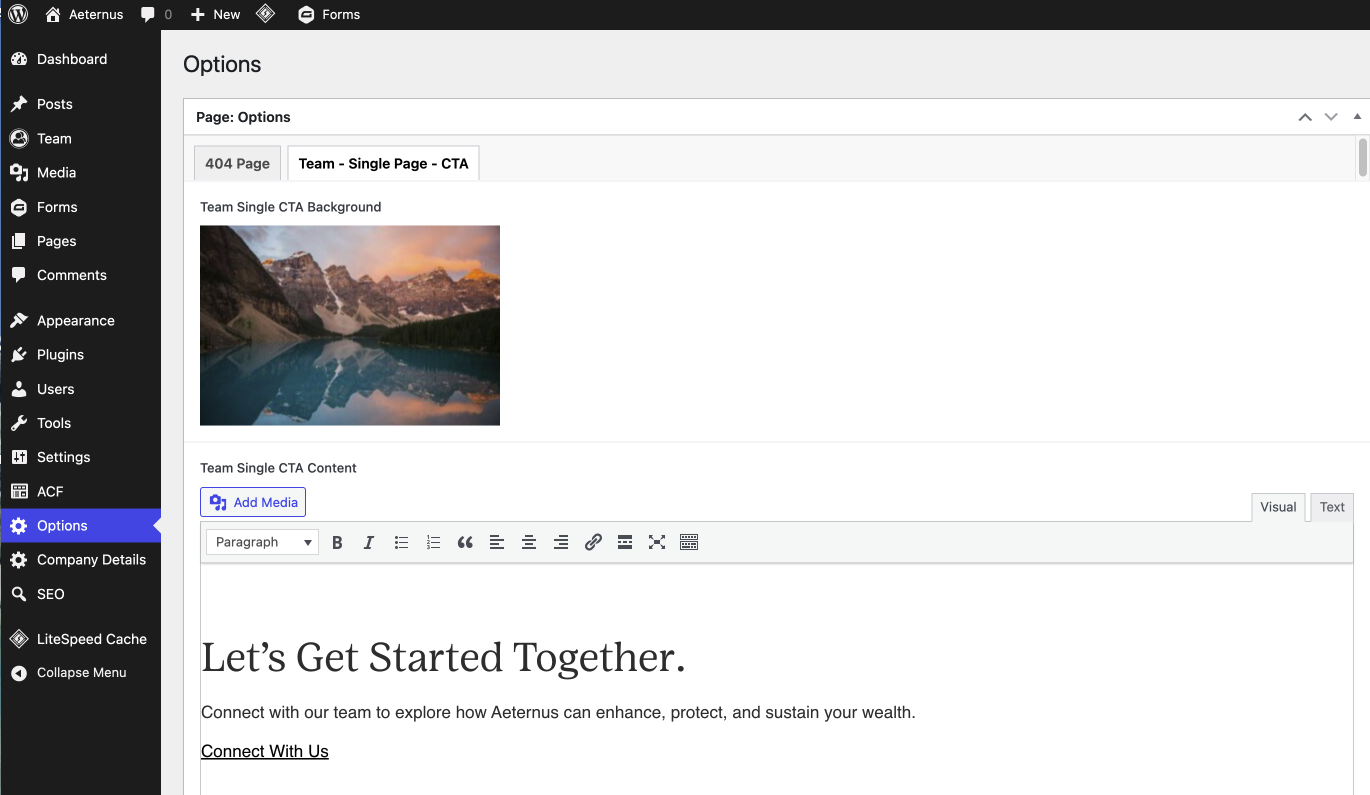
To edit key global content areas on the website (such as the 404 page, team single page CTA), go to Options in the left sidebar.
- Edit the 404 Page Content
- Update the page content and any links shown on the 404 page and the image
- Edit the Team – Single Page CTA Content
- Update the page content and any links shown on the Single Team Bio page CTAs and the image

Company Details
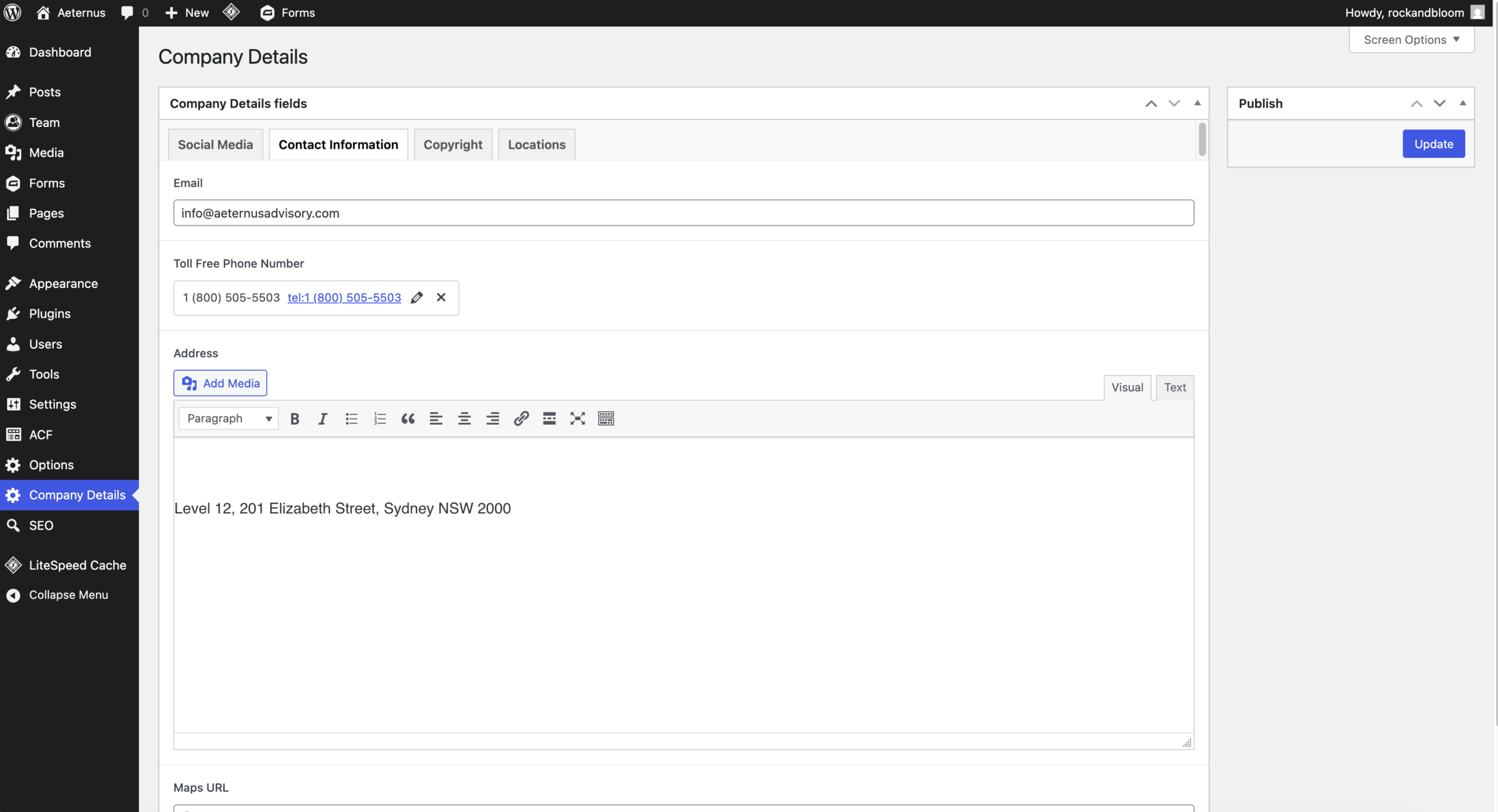
To edit key global content areas on the website (such as footer social links, contact page info, locations block), go to Company Details in the left sidebar.
- Edit the Company Details Content:
- Social Media
- Contact Information
Copyright
Locations
Group
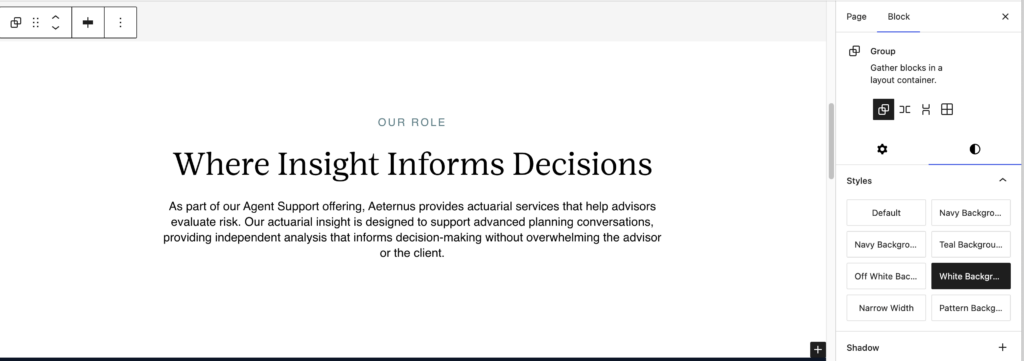
Group sections together with the group block. It adds padding to the top and bottom of the section and centres the content on the page.
The option follow:
- Default: no styling or background color
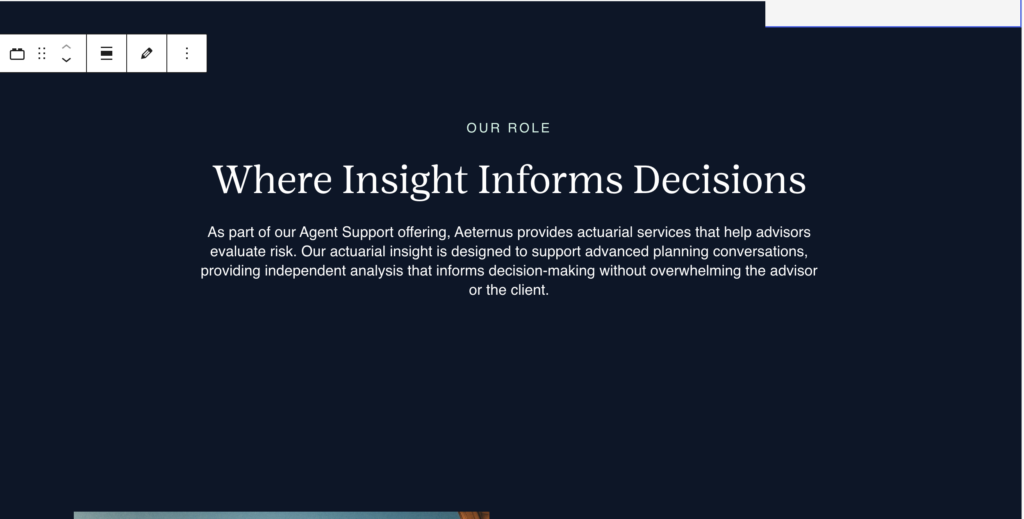
- Navy Background
- Navy Background Overlap
Adds the notch overlap - Teal Background
- Off-White Background
- White Background
- Narrow: Needs to be nested inside a Default or Coloured Group to be centred on the page with padding. Makes content width narrow; Does NOT centre content or add padding to the top/bottom.
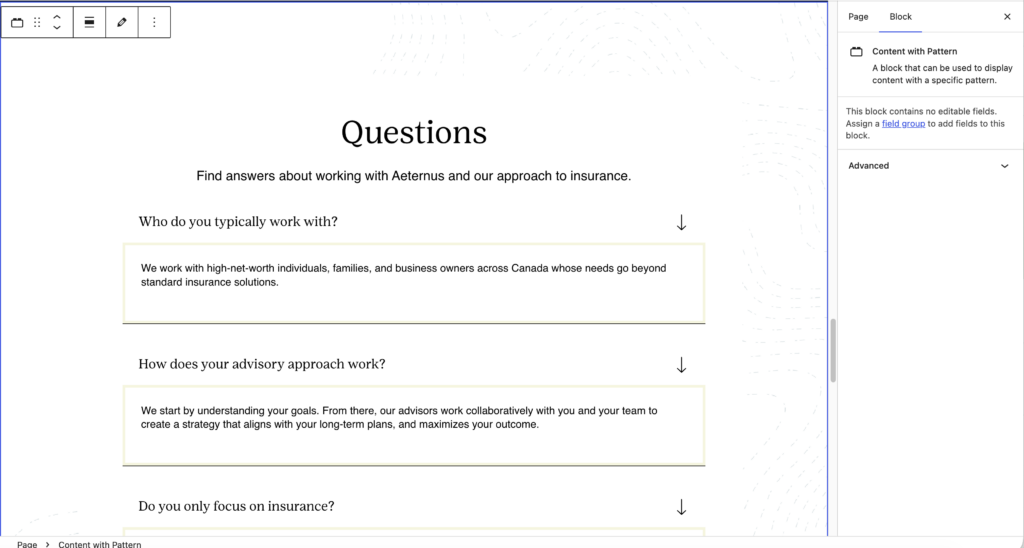
Content with Pattern
Similar to a Group but preset spacing and pattern added behind content.
This block has no special fields. Just add content.
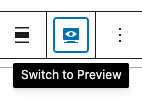
Content: Edit in Preview Mode
Select the block and select the preview mode option shown above the block
Accordion Row
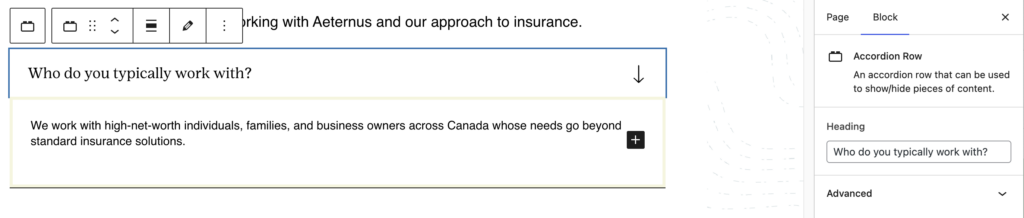
Block includes:
- Heading
- Content: Edit in Preview Mode
- Select the block and select the preview mode option shown above the block

Hero Banner
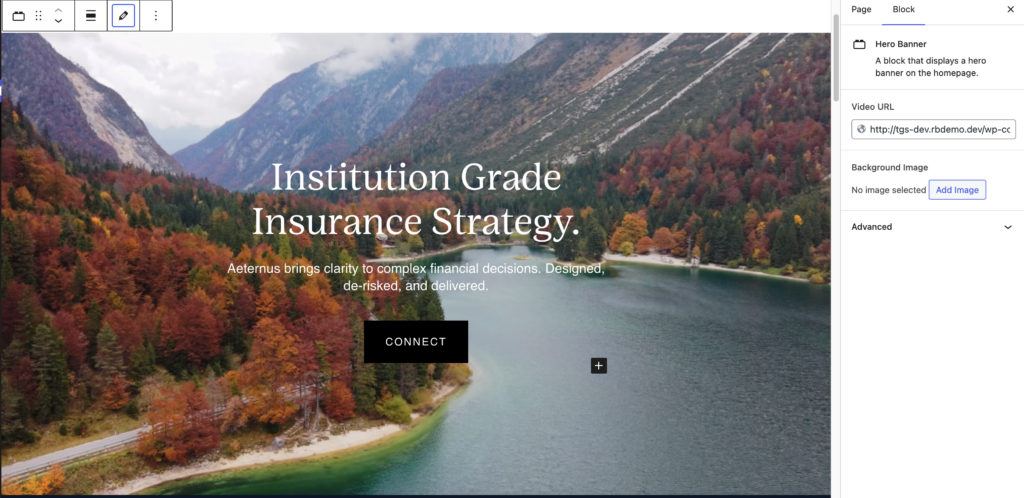
Block requires:
- Banner Type:
- Video: Video URL or
- Image: Background image
- Content: Edit in Preview Mode
- Select the block and select the preview mode option shown above the block
Do NOT include inside Group.
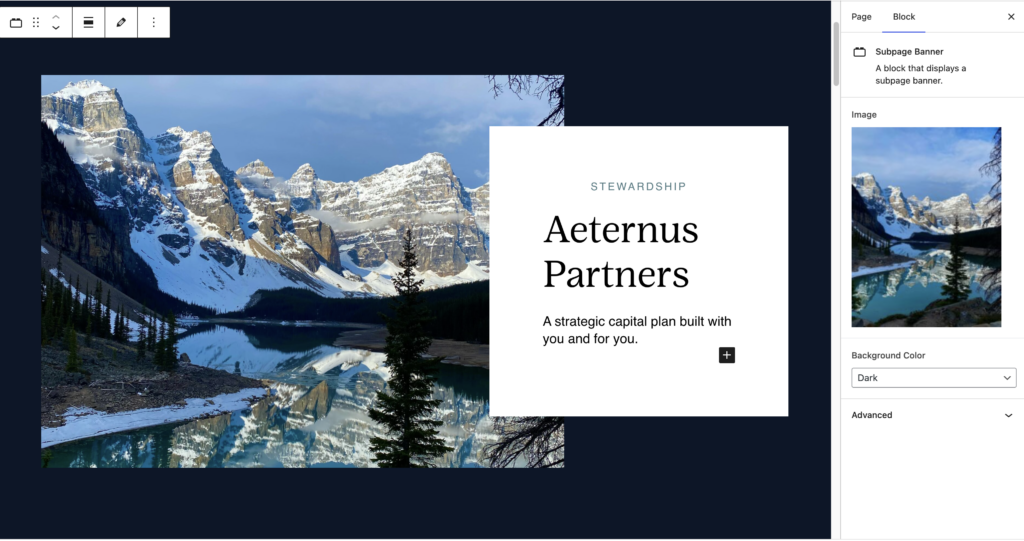
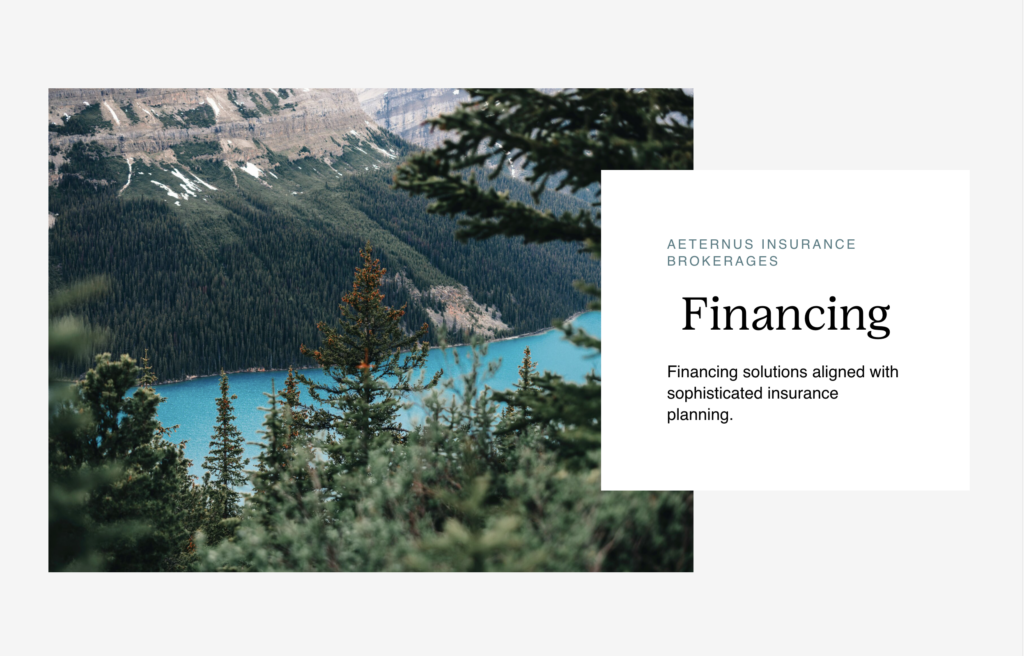
Subpage Banner
Block requires:
- Image
- Background Color: (auto adds pattern)
Dark
Light
** Make sure the subpage banner color matches the Menu Background color - Content: Edit in Preview Mode
- Select the block and select the preview mode option shown above the block
Do NOT include inside Group.
CTA
Block requires:
- Image
- Content: Edit in Preview Mode
- Select the block and select the preview mode option shown above the block
Do NOT include inside Group.
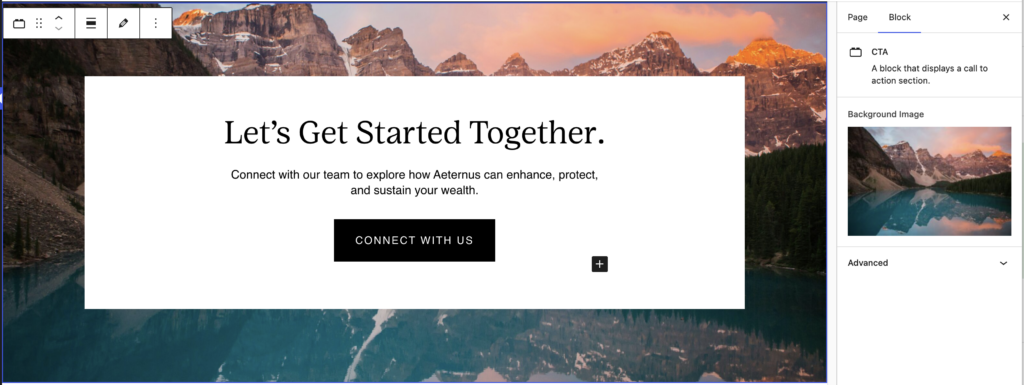
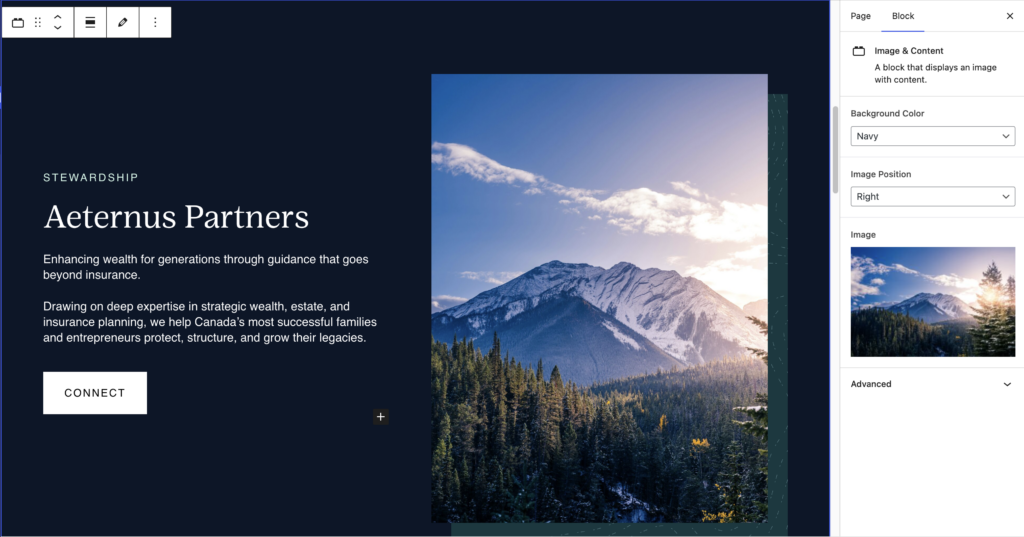
Image & Content
Block requires:
- Image
- Image Position: Left or Right
- Background Colour
- Navy
- White
- Off-white
- Content: Edit in Preview Mode
- Select the block and select the preview mode option shown above the block
Do NOT include inside Group.
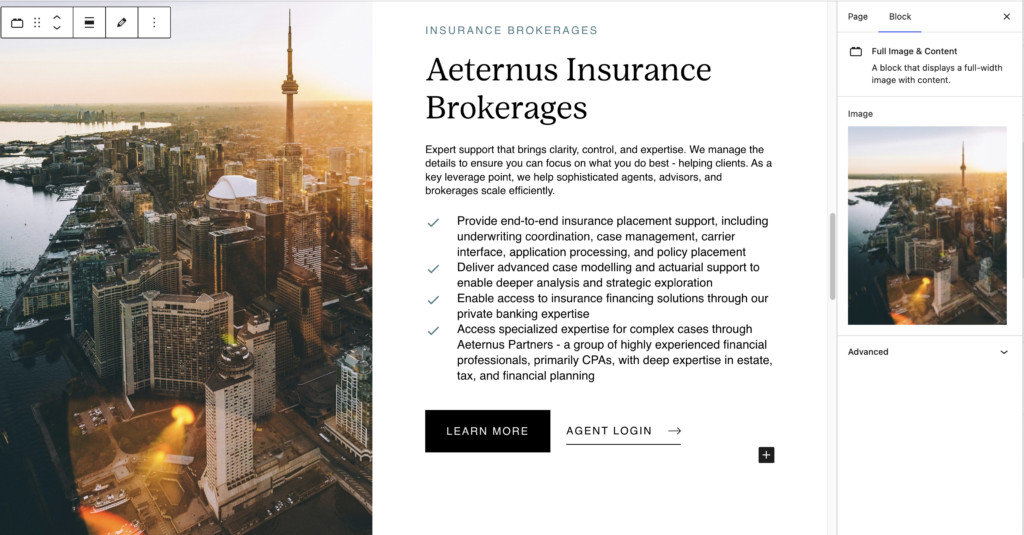
Full Image & Content
Block requires:
- Image
- Content: Edit in Preview Mode
- Select the block and select the preview mode option shown above the block
Do NOT include inside Group.
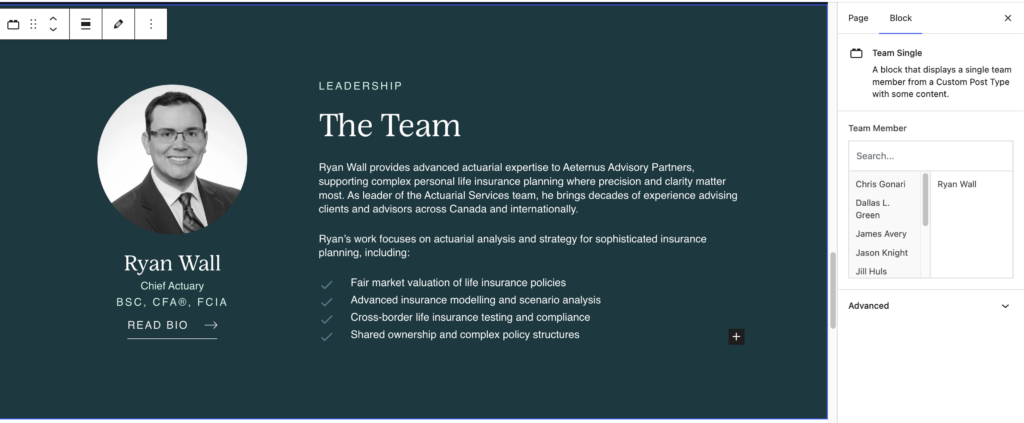
Team Single
Block requires:
- Team Member
- Content: Edit in Preview Mode
- Select the block and select the preview mode option shown above the block
Do NOT include inside Group.
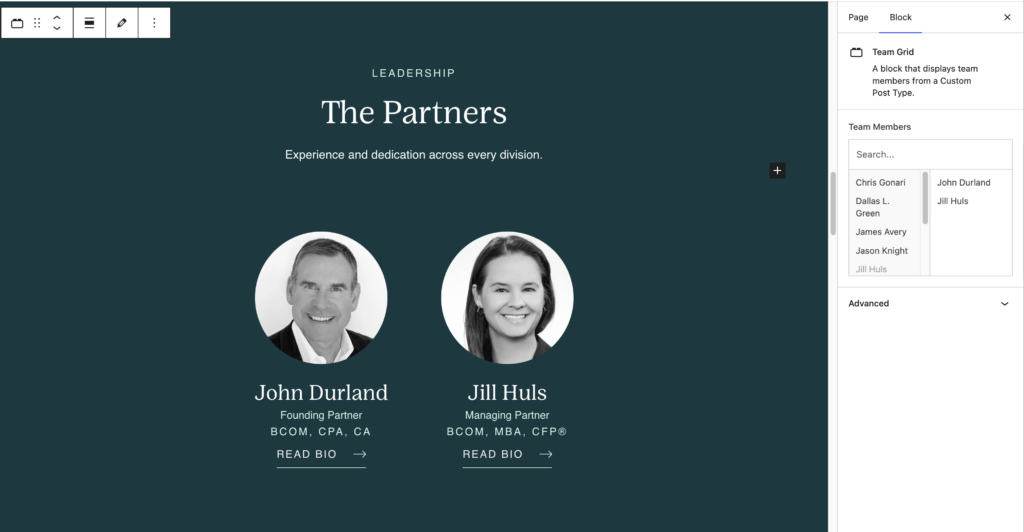
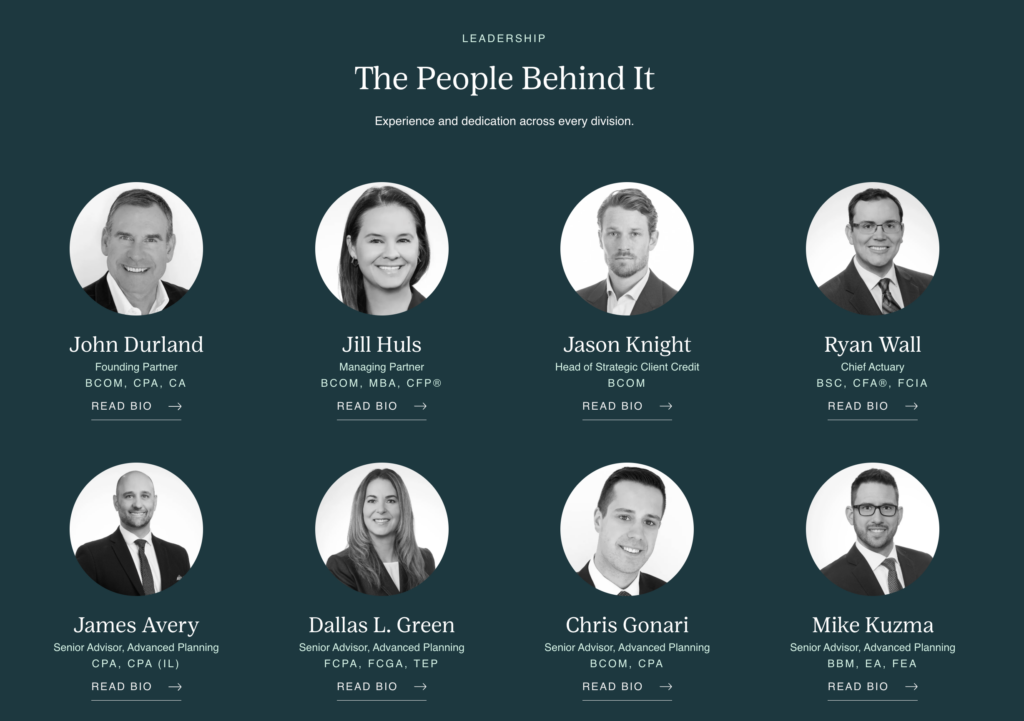
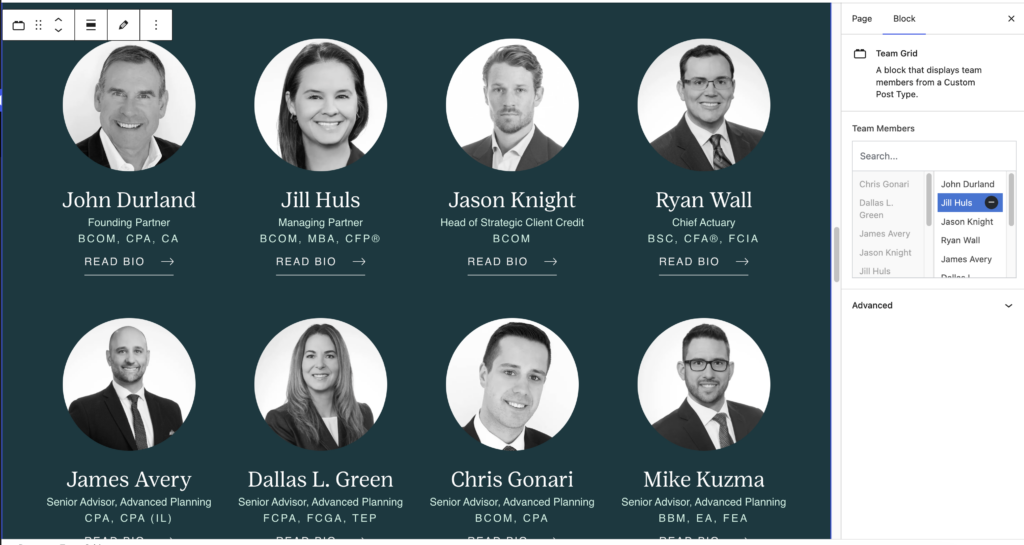
Team Grid
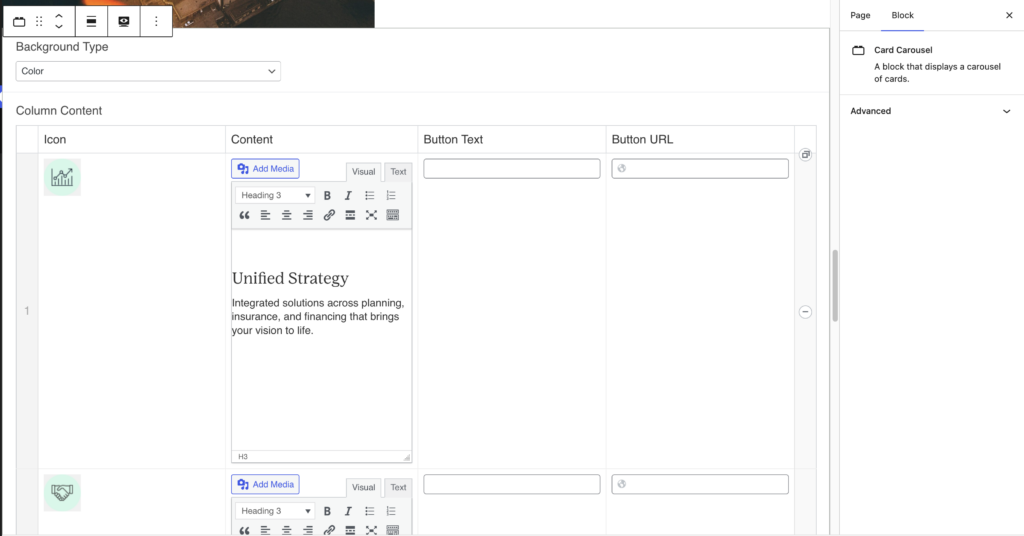
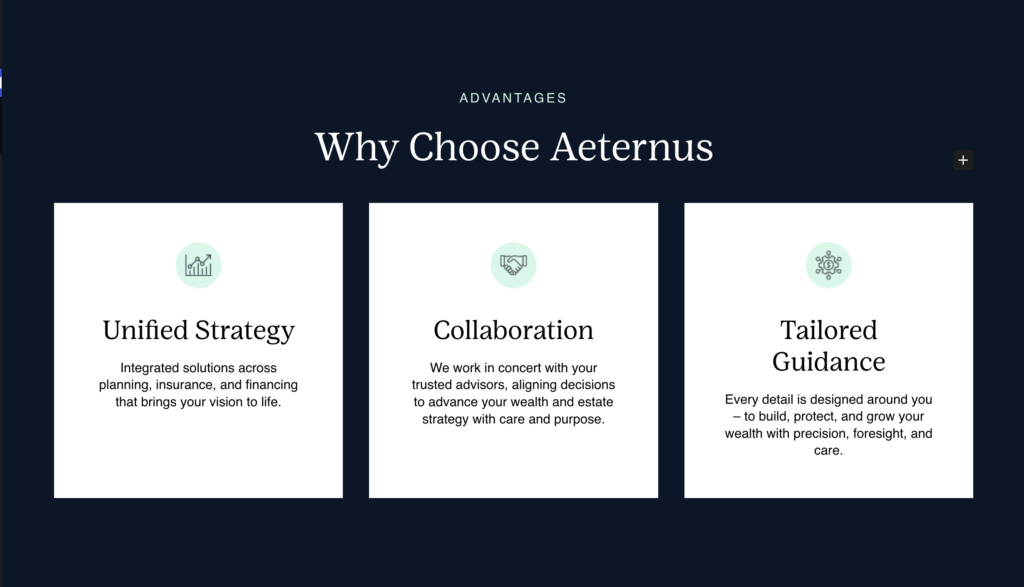
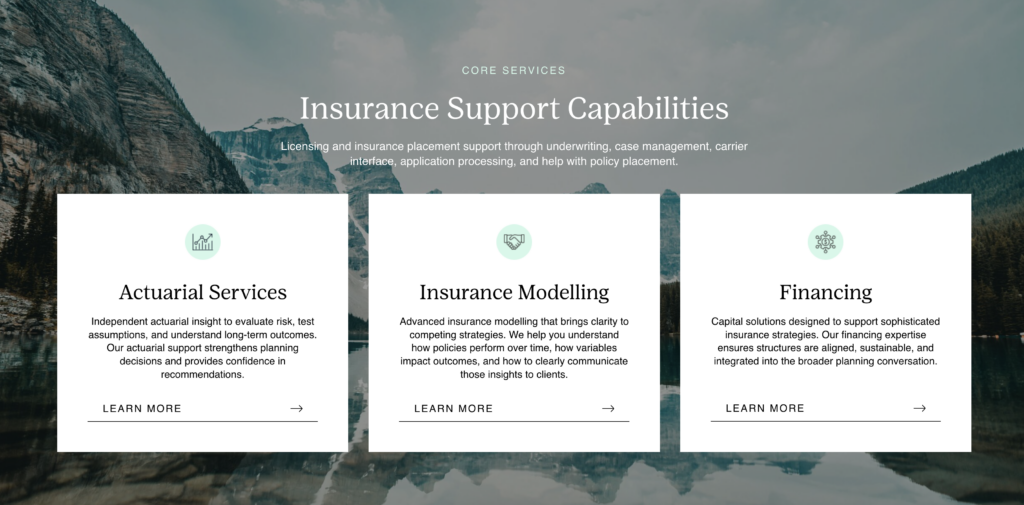
Card Carousel
Block requires:
- Cards
- Icon: Image
- Content
- Button (optional): Button title and URL
- Add Item with “Add Row” button or “+” on right side of slides table (displays on hover)
- Remove Item with “-” on right side of slides table (displays on hover)
- Background Type:
- Color
Image: Background image
- Color
- Content: Edit in Preview Mode
- Select the block and select the preview mode option shown above the block
Do NOT include inside Group.
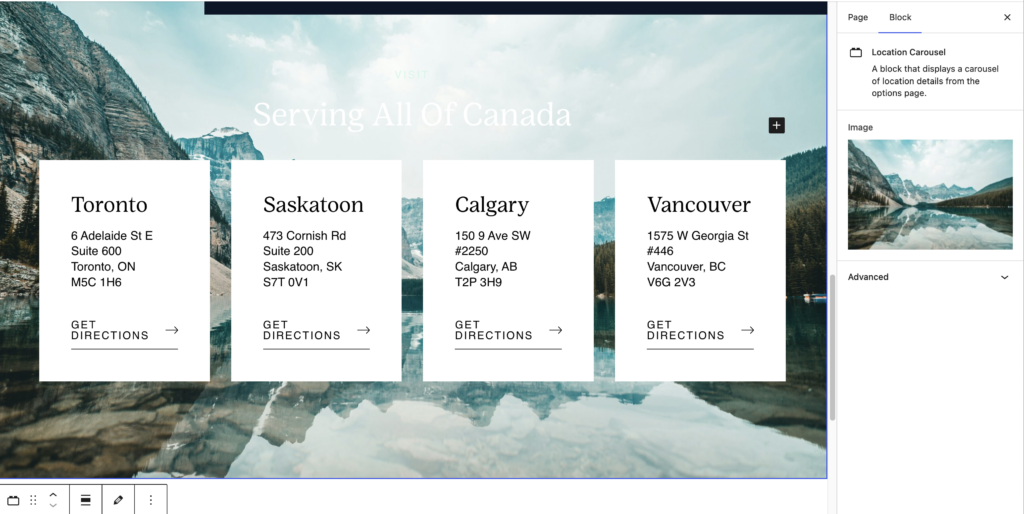
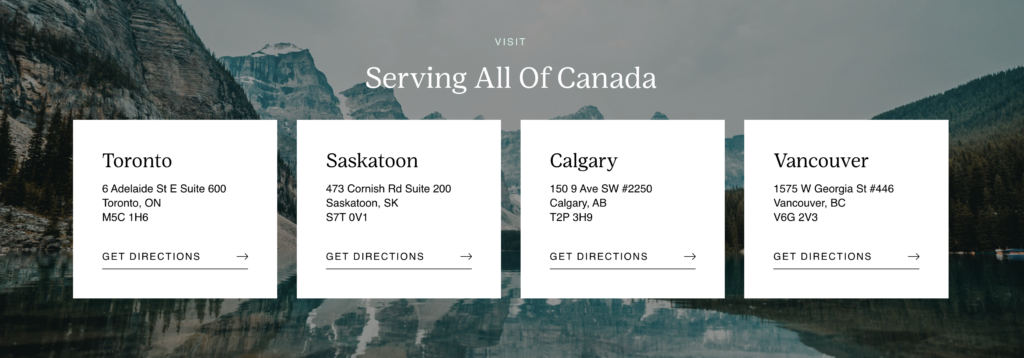
Location Carousel
Block requires:
- Image
- Location Details:
City, Address, Google Maps URL come from Company Details under Locations tab - Content: Edit in Preview Mode
- Select the block and select the preview mode option shown above the block
Do NOT include inside Group.
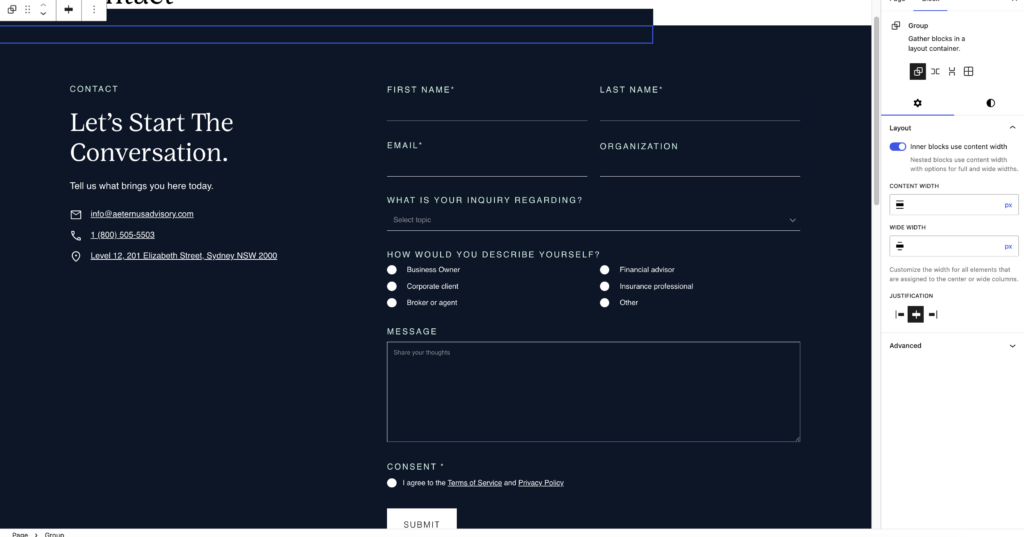
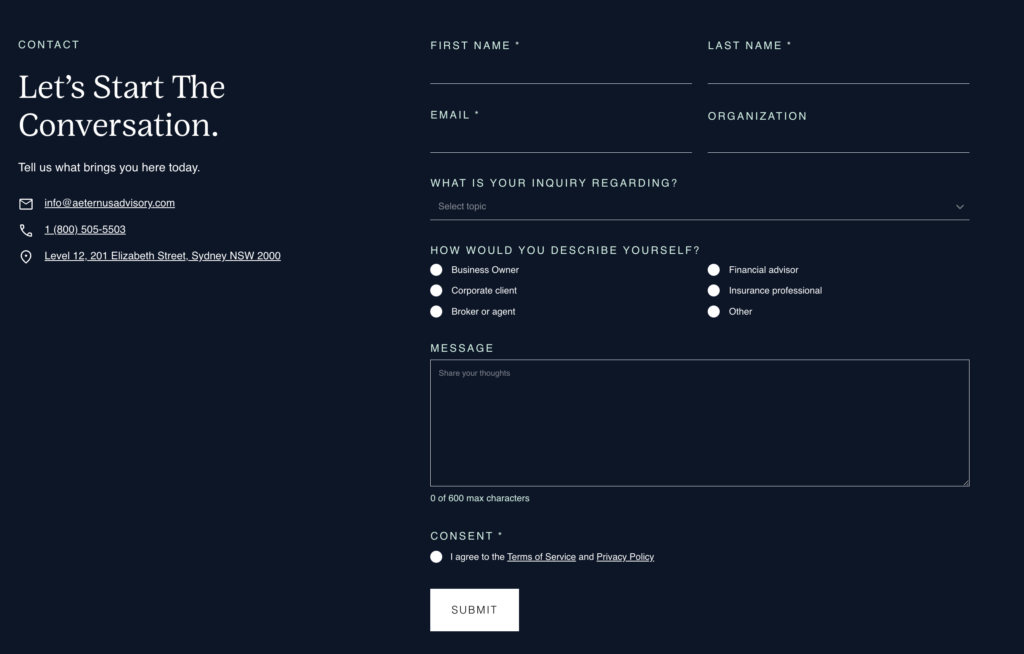
Contact
Block requires:
- Contact Info Block
Email, Phone, Address come from Company Details under Contact Information tab - Form: Contact Form (edited in Gravity Forms tab)
- Content: Edit in Preview Mode
- Select the block and select the preview mode option shown above the block
Do include inside Group.
Team
The team member post type are displayed in the Team Single and Team Grid blocks.
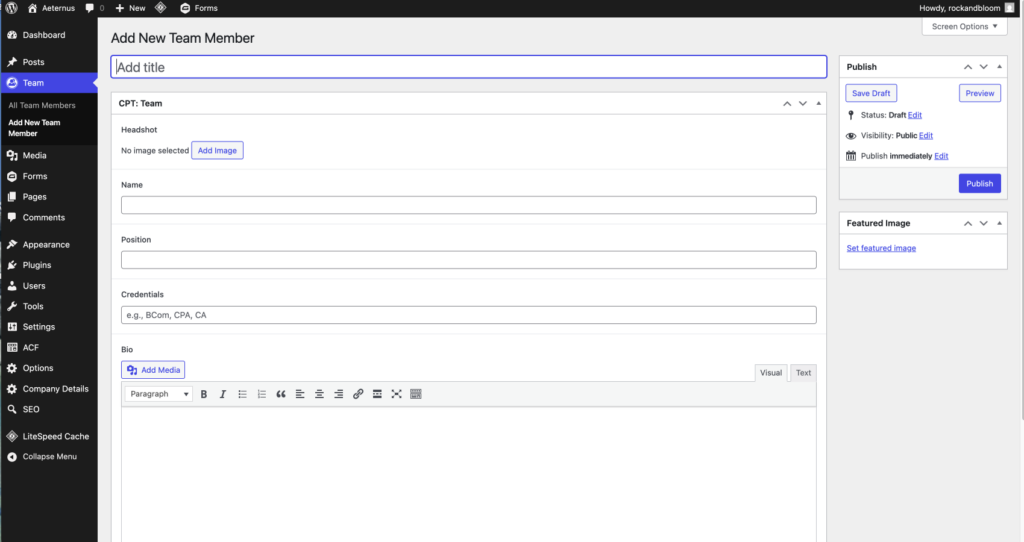
To create a new post, select Add New Team Member.
Requires 4 fields:
- Title: the Team Member’s name
- Name: same as Title
- Position
- Credentials
- Bio
- LinkedIn URL
- Headshot: Team Member’s headshot image
Team members are NOT automatically added to Team Single and Team Grid.
To add team members:
- Go to the Our Story page or any page displaying a team block.
- Go to the Team Single or Team Grid block
- Select the team member(s) to be displayed on the left side of the field and reorder the team member(s) on the right side of the field.
Contact Us
Questions? We’re here to help! Reach out anytime if you need a hand.

Molly Lux
Account Manager/Director
molly@rockandbloom.com

Meg Wilken
Creative Operations
meg@rockandbloom.com